
StratGen User Manual (v1.3)
StratGen is a professional-grade no-code platform for quantitative research and trading, designed for quant traders who demand rigorous out-of-sample testing, robustness analysis, and autonomous AI-assisted strategy engineering.
Get Started Now
Available for Windows
Table of Contents
Core Concepts (Read This First)
In-Sample (IS) vs Out-of-Sample (OOS)
StratGen is built around a simple rule: a strategy is only “real” if it works on data it did not learn from.
- IS (In-Sample) means the “training” part of your data. StratGen searches for a good rule and parameter set using this portion.
- OOS (Out-of-Sample) means the “test” part of your data. StratGen runs the same strategy logic on new, unseen data to verify it still performs.
Simple interpretation: IS is where you find strategies. OOS is where you trust strategies. If IS looks great but OOS collapses, it is usually overfit.
What P1 and P2 mean
Many signals in StratGen are “parameterized.” That means the signal has one or two tunable numbers, shown as {P1} and {P2}.
- P1 is parameter #1. Example: a moving average length like 20, 50, or 200.
- P2 is parameter #2 (if the signal needs it). Example: a second length, a threshold, or a confirmation window.
StratGen automatically tests multiple values of P1 and P2 to find what performs best. This is part of strategy discovery.
What “min;max;step” means (example: 10;50;5)
In StratGen, many numeric inputs accept a special format: min;max;step.
- min: smallest value to test
- max: largest value to test
- step: how much to increase each test
Example: 10;50;5 means test: 10, 15, 20, 25, 30, 35, 40, 45, 50.
Simple rule: smaller steps test more combinations (slower, more risk of overfitting). Bigger steps test fewer combinations (faster, more general).
1) Launch StratGen
When StratGen starts, wait for the loading bar to finish before interacting with the platform.
2) Settings Window
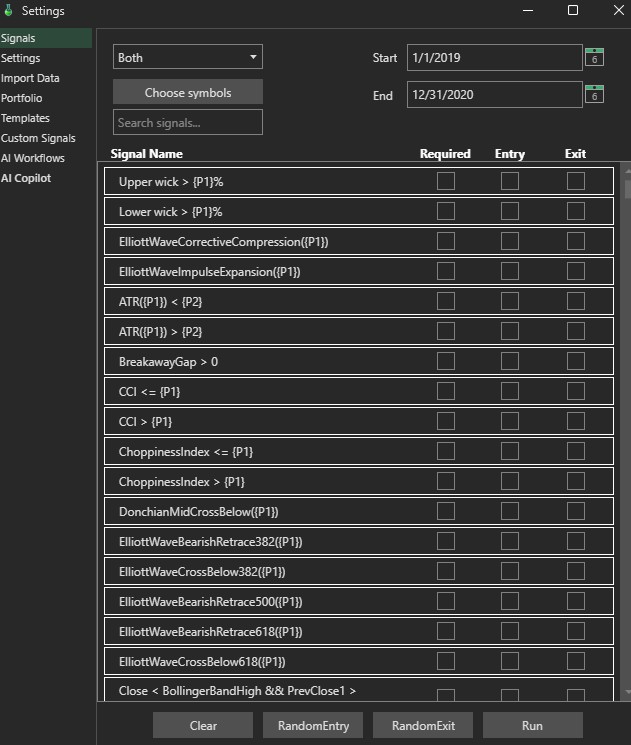
The Settings window is the primary operational hub of StratGen. It unifies strategy discovery, signal management, risk modeling, data feeds, and AI autonomous workflows.
Use the left sidebar navigation to access all major modules:
- Signals: Configure target symbols, historical date bounds, and select Required, Entry, and Exit indicators.
- Settings: Set starting capital, profit targets, stop losses, trailing stops, rule counts, session close times, and optimization limits.
- Import Data: View configured futures, stocks, or crypto instruments, adjust point values and margin, or import local CSV files.
- Portfolio: Assemble multiple tested strategies into an aggregated portfolio to analyze combined drawdown and performance.
- Templates: Save and load complete platform presets and parameter configurations.
- Custom Signals: Write and compile custom C# MiniSignals to expand the platform's indicator library.
- AI Workflows: Configure automated heuristic exploration sweeps, retry policies, and auto-combination cycles.
- AI Copilot: Converse with the autonomous AI quantitative assistant to build, backtest, walk-forward validate, and export strategies in plain English.
Signals (Required, Entry, and Exit Rules)
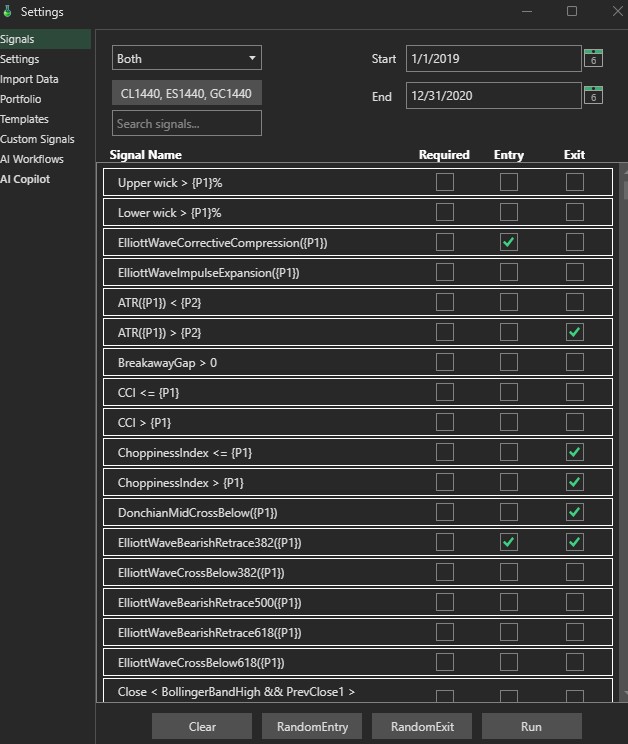
Signals are the fundamental quantitative building blocks of StratGen strategies. In the Signals tab, you configure target symbols, date boundaries, and determine how indicators are utilized during candidate generation.
Understanding the Three Signal Columns
- Required: Forces the selected signal to appear in every single strategy combination generated during the simulation. This is especially useful for structural filters—such as requiring a regime indicator (e.g., Choppiness Index or Elliott Wave) or higher-timeframe trend condition.
- Entry: Designates the signal as an entry trigger candidate. The discovery engine tests permutations across your chosen Entry signals.
- Exit: Designates the signal as an indicator-based exit candidate.
Multi-Symbol Testing
You can test across multiple instruments simultaneously by entering a comma-delimited symbol list in the symbol box (for example: CL1440, ES1440, GC1440). StratGen will evaluate combinations against all specified datasets.
Parameterized Signals (P1, P2)
Many signals include {P1} or {P2}. These placeholders represent numeric parameters (such as moving average periods or volatility thresholds) that StratGen sweeps through during simulation. You can adjust the minimum, maximum, and step values in the parameter controls.
Beginner workflow (recommended)
- Select one symbol (example: NQ or ES).
- Choose 1 mandatory Required filter or leave Required empty for unrestricted exploration.
- Select 2 to 4 Entry signals.
- Select 1 to 2 Exit signals.
- Configure slippage, commissions, and exit parameters in the Settings tab.
- Click Run and analyze Out-of-Sample (OOS) performance first.
4) Strategy Settings & Rule Complexity
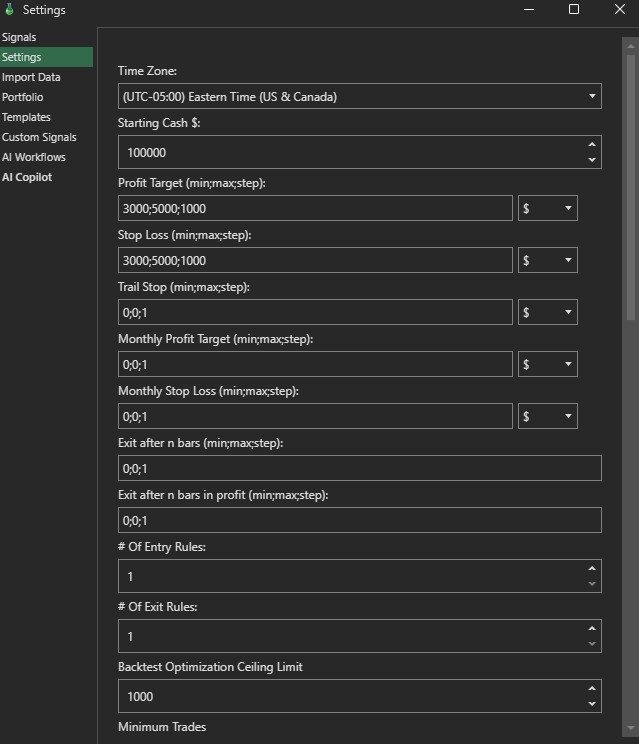
The Strategy Settings tab controls execution reality, risk management parameters, rule complexity, and optimization constraints.
Starting Cash and Time Zone
Starting Cash specifies the initial account balance for backtests (e.g., 100000). The Time Zone dropdown aligns historical price timestamps with market session hours (e.g. Eastern Time US & Canada).
Profit Target, Stop Loss, and Trailing Stop
Configure protective risk orders using either dollar amounts ($) or percentage (%) via the adjacent dropdown:
- Profit Target (min;max;step): Take-profit order price threshold (e.g.,
3000;5000;1000). - Stop Loss (min;max;step): Protective stop order price threshold (e.g.,
3000;5000;1000). - Trail Stop (min;max;step): Trailing stop order that ratchets up to protect unrealized profits. Set to
0;0;1to disable.
Monthly Governors and Time Exits
- Monthly Profit Target & Stop Loss: Caps trading activity once the monthly gain or loss boundary is hit.
- Exit after n bars: Forces trades flat after holding for a designated bar count, eliminating stale positions.
- Exit after n bars in profit: Automatically liquidates positions that remain in profit after a set duration.
# Of Entry Rules & # Of Exit Rules
These controls dictate how many signals are combined conjunctively (using boolean AND logic) to construct entry or exit triggers:
- # Of Entry Rules = 1: Tests individual rules:
Rule1. - # Of Entry Rules = 2: Tests pairs of rules that must both trigger on the same bar:
Rule1 && Rule2. - # Of Exit Rules: Specifies how many exit signals must simultaneously trigger to close an open trade.
Backtest Optimization Ceiling Limit
Backtest Optimization Ceiling Limit (default: 1000) caps the maximum number of generated strategy combinations evaluated per run. This ensures swift simulation iterations even when large numbers of signals and parameter ranges are enabled.
Beginner advice
- Keep # Of Entry Rules and # Of Exit Rules set to 1 when first exploring an instrument.
- Adding a second entry rule increases selectivity and reduces trade count, but requires sufficient data to avoid overfitting.
Out Of Sample % (OOS)
OOS means Out-of-Sample. This is the “test” period that the strategy did not train on.
- IS (In-Sample): training period, where StratGen searches for good rules and parameters.
- OOS (Out-of-Sample): validation period, where you confirm it still works.
The two most important performance numbers: Ret/DD and Sharpe
Ret/DD (Return divided by Drawdown)
Ret/DD is a “profit per pain” metric: it compares how much money you made versus how deep the worst drawdown was.
- Higher is better (it means you earned more for the risk taken).
- If two strategies have similar profit, pick the one with higher Ret/DD (usually lower drawdown).
Sharpe (risk-adjusted consistency)
Sharpe is a “smoothness/consistency” score. It compares average return versus volatility of returns.
- Higher Sharpe usually means smoother equity and more consistent returns.
- Lower Sharpe usually means the returns were more erratic, even if the profit was high.
Common mistake
Do not pick strategies by In-Sample (IS) performance alone. That often selects overfit strategies. Use Out-of-Sample (OOS) and Walk-Forward as your real filter.
Position Sizing and Pyramiding
Position sizing answers this question: How big should each trade be? Pyramiding answers this question: Can the strategy add another entry while it is already in a trade?
Position sizing modes
StratGen can test different ways of sizing trades. The exact controls available depend on your current build and selected instrument, but the common modes are:
- Fixed Position Size: always trade the same quantity. Example: always trade 1 contract.
- Fixed Dollar Risk: size the trade so the dollar risk is near a target amount. Example: risk about $500 per trade.
- Percent Equity Risk: size the trade based on a percent of account equity. Example: risk 1% of the account.
- Fixed Notional: size by total market exposure. Example: keep each position near a fixed dollar value.
Beginner explanation
A strategy can look good with 1 contract and terrible with oversized trades. Position sizing is not decoration. It changes profit, drawdown, risk of ruin, and whether the strategy is realistic for your account.
How to choose a position sizing mode
- Use Fixed Position Size when you want the cleanest research comparison between strategies.
- Use Fixed Dollar Risk when you want each trade to risk roughly the same number of dollars.
- Use Percent Equity Risk when you want position size to grow or shrink with the account.
- Use Fixed Notional when you want exposure to stay similar across instruments with different prices.
Pyramiding
Pyramiding allows a strategy to add to an existing position. For example, if a long strategy is already long and another valid long entry signal appears, the strategy may add another unit instead of ignoring the signal.
- Max Pyramid Entries: maximum number of entries allowed in the same direction.
- Pyramiding Exit Mode: controls how exits reduce or close pyramided entries.
- Scale-out behavior: newer NinjaTrader exports handle pyramiding exits so partial exits reduce the correct position size.
Common pyramiding mistake
Pyramiding usually increases both profit potential and drawdown. If you turn it on, watch MaxDD, margin usage, and the trade list. Do not assume more entries means a better strategy.
Reversal behavior
StratGen now supports reversal-style behavior where an opposite signal can flip the position instead of waiting for the strategy to become flat first. Example: if the system is long and a short signal appears, the strategy can close the long and enter short.
- Good use case: trend-following or regime-switching systems where long and short signals are opposites.
- Risk: reversal systems can trade more often, which means slippage and commissions matter more.
- What to check: compare trade count, average trade, and drawdown before and after enabling reversal behavior.
Advanced Exits, Monthly Limits, and Incubation
Exits are where many strategies succeed or fail. A good entry with a bad exit can still lose money. StratGen includes several exit controls so you can test more realistic trade management.
N bars and N bars profit
- Exit after N bars: closes a trade after it has been open for a certain number of bars.
- N bars profit: can be used to force or test exits after the trade has had time to work.
- Why it matters: without a time-based exit, some strategies can sit in positions far longer than intended.
Monthly profit target and monthly stop loss
Monthly trade governor settings let you limit behavior by month. This is useful when you want a strategy to stop after it reaches a monthly profit target or stop after a monthly loss limit.
- Monthly Profit Target: can stop or restrict trading after a target profit is reached for the month.
- Monthly Stop Loss: can stop or restrict trading after the month reaches a loss threshold.
- Why users use it: to avoid giving back gains after a good month or digging deeper after a bad month.
Incubation months
Incubation means waiting before trusting a strategy. In practice, it gives a strategy a period where it must prove itself before it is treated as ready.
- Use incubation when you want a buffer between discovery and deployment.
- Do not use incubation as a magic fix for bad OOS performance. It is a filter, not a cure.
- Simple interpretation: if a strategy cannot survive a waiting period, it may not be stable enough.
Exit testing checklist
- Start with simple exits: stop loss, profit target, or N bars.
- Add monthly limits only if they match how you would actually trade.
- Check OOS trade count. Too few trades makes the result less trustworthy.
- Check average trade after slippage and commissions. Tiny average trade can disappear live.
5) Walk-Forward & Realism (Recommended)
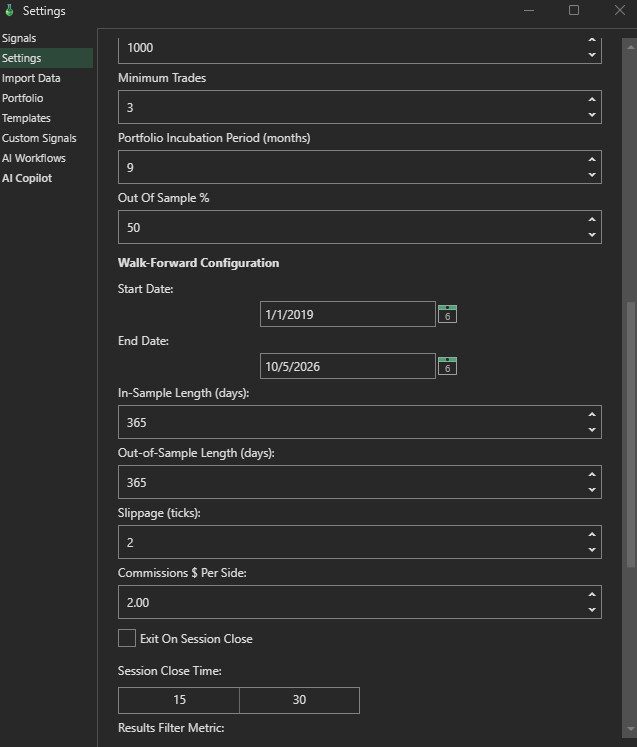
Walk-forward testing is strongly recommended for every strategy. It gives you the most Out-of-Sample (OOS) coverage, and it is harder to “cheat” by accident.
What walk-forward means (simple)
Instead of doing one big IS/OOS split, walk-forward repeats many smaller splits: train on one time window (IS), then test the next window (OOS), then slide forward and repeat.
- More OOS data means a tougher, more realistic test.
- More windows means you see if the strategy works in different market conditions.
Walk-Forward Configuration Parameters
- Start Date & End Date: Defines the full chronological time span across which walk-forward windows are partitioned.
- In-Sample Length (days): The duration of each training segment (e.g.
365days). - Out-of-Sample Length (days): The duration of the subsequent validation segment tested with the optimal IS parameters (e.g.
365days). - Minimum Trades: Filters out strategies with insufficient trade count (e.g. fewer than 3 to 10 trades) to prevent curve-fitting artifacts.
- Portfolio Incubation Period (months): Buffer period required before a strategy candidate can graduate into live portfolio allocation.
- Out Of Sample %: Percentage of historical data reserved for unseen testing during single-split backtests.
Slippage, Commissions, and Realistic Frictions
- Slippage (ticks): Simulates real-world execution friction by penalizing trade fills by N ticks per fill (default:
2ticks). - Commissions $ Per Side: Transaction fee applied on every trade entry and exit (default:
$2.00per side).
Exit On Session Close & Session Close Time (Day Trading vs Swing)
StratGen includes dedicated session close execution gating to distinguish day-trading strategies from multi-day swing systems:
- Exit On Session Close (checkbox): When enabled, all open trades are forcefully liquidated at the designated time every day. This eliminates overnight margin requirements and gap risk.
- Session Close Time (hours : minutes): The exact cutoff time to liquidate intraday positions (for example,
15:30for US stock index futures). - Swing Trading Note: For multi-day or daily swing strategies, leave Exit On Session Close unchecked. This allows positions to hold overnight and capture larger multi-day price expansions without premature liquidation at daily settlement.
Results Filter Metric
Specifies the quantitative metric used to rank and filter candidates across optimization passes (e.g. Ret/DD, Sharpe Ratio, Net Profit).
Strong recommendation
- Walk-forward every strategy before exporting code to NinjaTrader, TradeStation, or Python.
- Walk-forward gives you the maximum amount of out-of-sample validation across multiple market regimes.
- If walk-forward fails or exhibits severe parameter instability, discard the strategy regardless of in-sample metrics.
Walk-Forward Monte Carlo (OOS-only)
The Monte Carlo button on the Walk-Forward Results page evaluates strictly Out-of-Sample trades across all windows. This provides an uncompromising robustness stress test by excluding all in-sample training periods.
New Signal Types: Donchian, Elliott Wave, Z-Score, and More
Newer StratGen versions added more signal families. Signals are still used the same way: you select them as possible entries or exits, set parameter ranges if needed, and let StratGen test combinations.
Donchian signals
Donchian signals compare price to recent highs or lows. They are commonly used for breakout and channel strategies.
- Highest: looks at the highest value over a lookback period.
- Lowest: looks at the lowest value over a lookback period.
- Typical entry idea: price breaks above a recent high for long, or below a recent low for short.
- Typical exit idea: price crosses back through a channel level or fails to continue.
If a Donchian signal has a parameter such as P1, P1 is usually the lookback length. A larger lookback means a slower, wider channel. A smaller lookback means a faster, more sensitive channel.
Elliott Wave signals
Elliott Wave signals try to describe market structure and wave-like movement. They are more interpretive than simple moving-average rules, so you should validate them carefully.
- Use them for: trend structure, continuation attempts, and possible reversal context.
- Be careful: wave logic can look good in hindsight. Always check OOS and walk-forward.
- Best practice: test Elliott Wave signals with simple exits first, then add complexity later.
Z-Score signals
Z-Score measures how far a value is from its normal range. In simple terms, it asks: Is this unusually high or unusually low compared with recent history?
- Positive Z-Score: value is above its recent average.
- Negative Z-Score: value is below its recent average.
- Near zero: value is close to normal.
Signal selection checklist
- Pick signals that make logical sense for the market you are testing.
- Use a small number of signals first. More signals means more combinations and more overfit risk.
- Use parameter ranges that are realistic. Do not test every number just because you can.
- After StratGen finds a result, read the selected entry and exit names. Make sure the strategy idea is understandable.
6) Import Data (CSV Requirements)
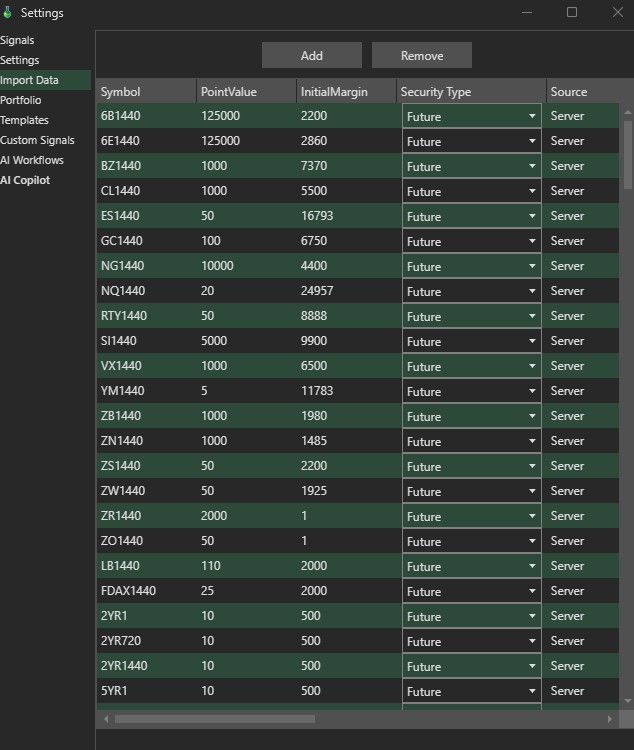
StratGen loads historical price data from CSV files on your computer. Each symbol row points to one CSV file. If the CSV format is wrong, the symbol will not load correctly.
What the table columns mean
- Symbol: market name (example: NQ, ES, CL, SPY, BTCUSD).
- PointValue: how much 1 point is worth (critical for futures).
- InitialMargin: margin required per contract (futures).
- Security Type: Future, Stock, Crypto.
- FilePath: full path to the CSV file on your PC.
CSV format
The CSV must contain OHLCV rows in this order: Time, Open, High, Low, Close, Volume
Supported timestamp formats:
- Minute bars:
MM/dd/yyyy HH:mmoryyyyMMdd HH:mm - Second bars and ticks:
MM/dd/yyyy HH:mm:ssoryyyyMMdd HH:mm:ss
Example minute bar:
01/15/2026 09:30,21500.25,21510.75,21490.00,21505.50,12345
Example second bar:
20260115 09:30:01,21500.25,21502.50,21499.75,21501.50,42
A header row is optional. Keep price and volume values numeric, keep rows in chronological order from oldest to newest, and do not add extra columns.
Importing tick data
Tick files use the same six-column OHLCV layout. Add one row per trade, repeat the trade price in the Open, High, Low, and Close columns, and place the trade size in Volume.
Time,Open,High,Low,Close,Volume
20260115 09:30:01,21500.25,21500.25,21500.25,21500.25,2
20260115 09:30:01,21500.50,21500.50,21500.50,21500.50,1
20260115 09:30:01,21499.75,21499.75,21499.75,21499.75,3
20260115 09:30:02,21500.00,21500.00,21500.00,21500.00,1
Multiple ticks may have the same whole-second timestamp. StratGen automatically consolidates all rows in that second into one second bar: the first trade becomes Open, the highest and lowest trades become High and Low, the final trade becomes Close, and positive trade sizes are added together for Volume.
Tick import checklist
- Export trades in chronological order, oldest first.
- Use a timestamp with seconds on every tick row.
- Repeat the trade price in all four OHLC columns.
- Use the individual trade size—not cumulative session volume—in the Volume column.
- Select the CSV as the symbol's FilePath. StratGen detects the second/tick resolution during import.
How to create the CSV (recommended)
A helper strategy called StratGenDataPrinter.cs is included. It prints data in the correct format. Apply it to a minute, second, or tick data series in NinjaTrader, then point StratGen to the exported CSV. Minute and second bars are written as one row per bar. Tick exports are written as one trade row at a time.
Time (MM/dd/yyyy HH:mm[:ss]), Open, High, Low, Close, Volume
Beginner warnings
- If PointValue is wrong, PnL and drawdown can be wrong.
- If FilePath is wrong, StratGen cannot load that symbol.
- If Time format is wrong, bars may not parse correctly.
- If tick Volume contains cumulative session volume, imported volume will be greatly overstated.
- Tick rows are consolidated to one-second OHLCV bars; StratGen does not retain a separate bar for every same-second tick.
Symbol Search, Server Symbols, and History Data Cache
Newer StratGen builds make symbol setup easier. You can still import your own CSV files, but StratGen also includes symbol search and server-supported symbol information so you spend less time hand-entering instrument details.
Symbol search
Symbol search helps you find a market without manually scrolling through a long symbol list. Search by the instrument name or ticker, then select the matching row.
- Use search when you know the symbol, such as ES, NQ, CL, SPY, or BTCUSD.
- Check the selected row before running. Make sure the point value and security type look right.
- If two symbols look similar, confirm the exchange, asset class, and file path before testing.
Server-supported point values
Futures and other instruments need correct point values. If the point value is wrong, every PnL number can be wrong. StratGen includes improved server-supported symbol point values, but you should still verify any market you trade.
History data caching
History data caching stores previously loaded data so repeated runs can start faster. This is especially useful when you test the same symbol many times while changing signals or risk settings.
- First run: may be slower because data has to be loaded and prepared.
- Later runs: can be faster because cached history may be reused.
- If data looks wrong: verify the original CSV or selected symbol. Caching makes repeated work faster, but it does not fix bad source data.
Data sanity checklist
- Confirm the symbol is the one you meant to test.
- Confirm point value and margin before trusting futures results.
- Confirm dates cover the full period you selected.
- Run a small test first. If the equity curve is flat or weird, fix data before running a huge optimization.
7) Run Simulation (Backtest Generation)
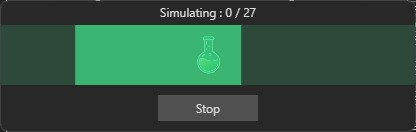
When you click Run, StratGen generates and tests many strategies based on your selected signals, parameters, and settings. This is where StratGen does the “heavy lifting.”
Important performance note
StratGen uses all available CPU cores to run backtests in parallel (simultaneously). This is why the system can test many combinations quickly, but it also means your PC may run at high CPU usage during simulations.
Recommended PC specs (for smooth performance)
- RAM: 8 to 16+ GB DDR4 or DDR5 (minimum recommended).
- CPU: 4 to 8+ core processor (more cores generally means faster results).
What to do
- Click Run in the Signals tab.
- Wait for the progress window to complete.
- When finished, StratGen will show the Strategy Results list.
8) Strategy Results (Select, Inspect, Export)
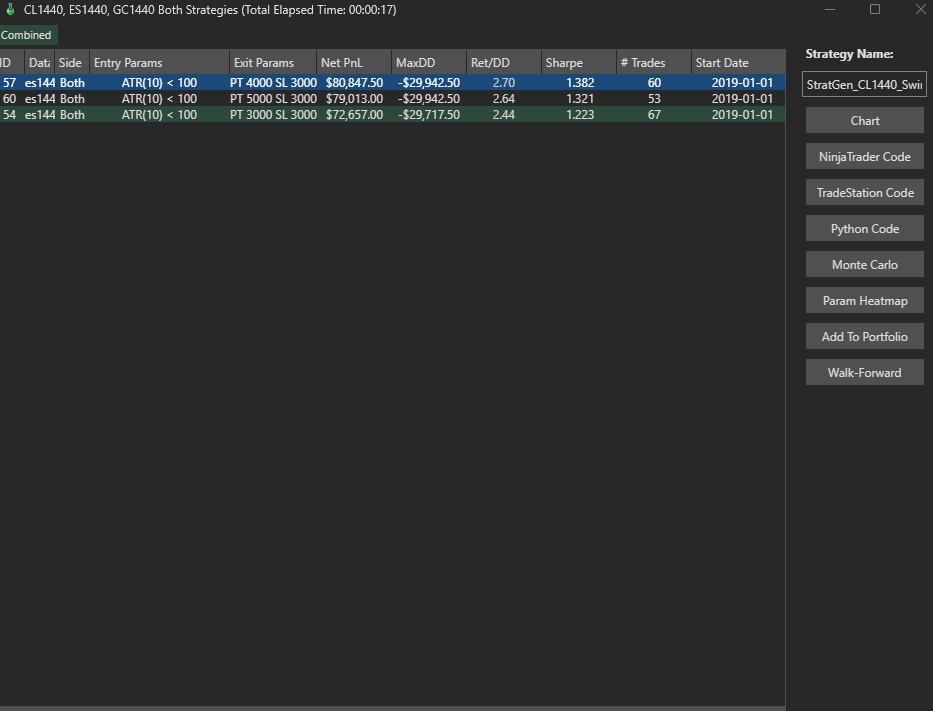
This table displays all strategy combinations generated by the simulation engine. You can inspect, sort, and rank candidates using institutional performance metrics including Net PnL, MaxDD (formatted in real currency dollars, e.g. -$29,942.50), Ret/DD (Return over Drawdown), Sharpe Ratio, and Trade Count.
Understanding the Results Columns
- ID: Unique identifier assigned to the strategy combination.
- Data: Historical instrument dataset used (e.g.
es144for ES 1440-minute daily bars). - Side: Directionality of the strategy (
Both,Long, orShort). - Entry Params: Concrete parameter values assigned to your entry rules (e.g.
ATR(10) < 100). - Exit Params: Target and stop loss thresholds (e.g.
PT 4000 SL 3000). - Net PnL: Cumulative simulated dollar profit or loss.
- MaxDD: Maximum peak-to-trough equity drawdown expressed in dollars.
- Ret/DD: Net PnL divided by Max Drawdown. Higher values indicate superior risk-adjusted return.
- Sharpe: Risk-adjusted consistency score comparing mean returns to return volatility.
- # Trades: Total executed trades across the backtest window.
- Start Date: Beginning date of the simulated backtest sample.
Important: you must select a strategy first
Before you can use Chart, NinjaTrader Code, TradeStation Code, Python Code, Param Heatmap, Add To Portfolio, or Monte Carlo, you must left-click a strategy row to select it.
What the Chart button does
Clicking Chart loads the selected strategy into the Backtest Dashboard. This is where you inspect the equity curve, trade list, logs, and detailed metrics.
Buttons on the right (simple)
- Chart: Opens the Backtest Dashboard and equity curves for the selected strategy.
- NinjaTrader Code: Generates an export-ready C# NinjaScript strategy file.
- TradeStation Code: Generates an EasyLanguage strategy script.
- Python Code: Generates a QuantConnect Lean Python algorithm template.
- Monte Carlo: Runs randomized trade order robustness simulations.
- Param Heatmap: Displays a 2D parameter sensitivity surface to verify stability around optimal parameters.
- Add To Portfolio: Adds the selected strategy into the multi-strategy Portfolio tab.
- Walk-Forward: Dispatches multi-window walk-forward validation for rigorous out-of-sample verification.
Beginner workflow (recommended)
- Select a strategy row (left-click).
- Click Chart and review drawdown and equity curve behavior.
- Run Monte Carlo to validate robustness.
- Run Walk-Forward for the strongest out-of-sample validation.
- Only then export code.
9) Backtest Dashboard
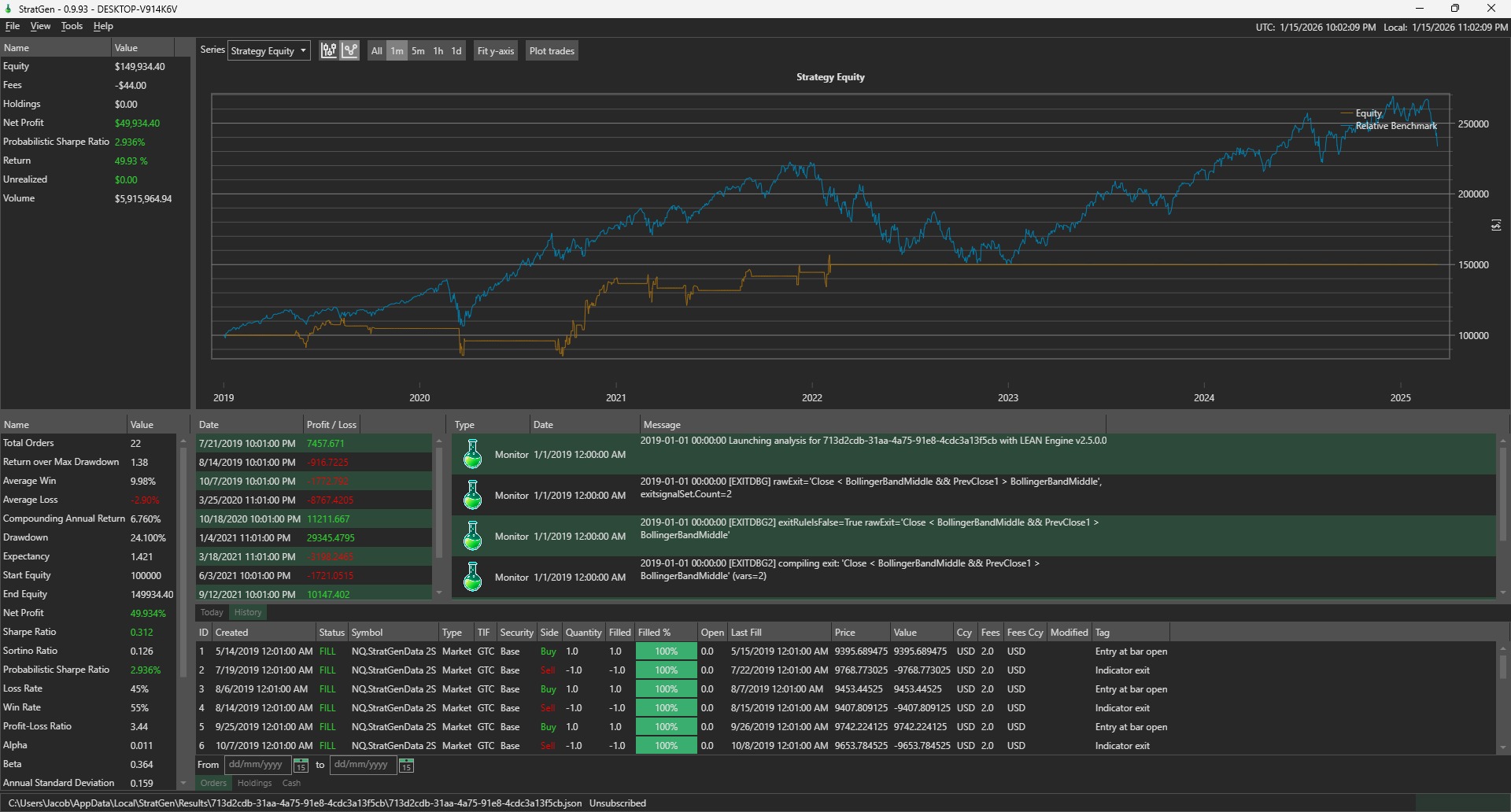
Review equity curves, trades, logs, and full performance metrics.
10) Generated Code (NinjaTrader, TradeStation, Python)
StratGen can export your selected strategy into platform-specific code. This helps you go from research to execution without rewriting logic by hand.
Important
You must left-click a strategy in the results list to select it before generating code.
NinjaTrader code export
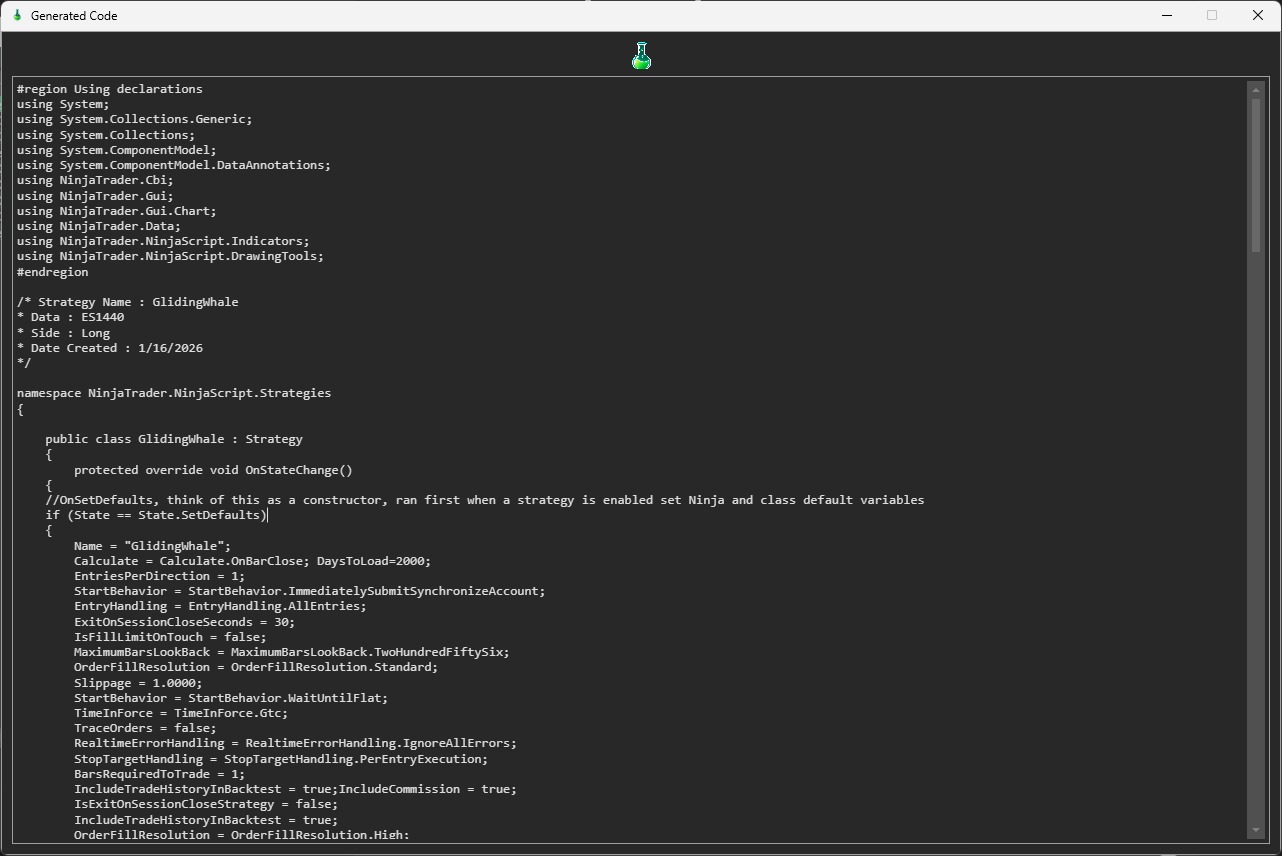
The NinjaTrader export generates a full NinjaScript strategy class. It includes default strategy settings and the strategy logic that StratGen discovered.
- What it is: a ready-to-compile NinjaTrader strategy.
- Where it goes: paste into NinjaTrader’s Strategy Editor (or a new .cs file in NinjaTrader).
- What to do: copy all, paste into NinjaTrader, compile, then run in the Strategy Analyzer.
NinjaTrader export notes for newer builds
- Pyramiding exits: newer exports handle scale-out behavior more correctly when pyramiding is enabled.
- KAMA and newer indicators: generated code has been updated so newer signal types export more reliably.
- Fill logic: always compare NinjaTrader Strategy Analyzer results with StratGen. Small differences can happen from platform fill rules.
TradeStation code export (EasyLanguage)
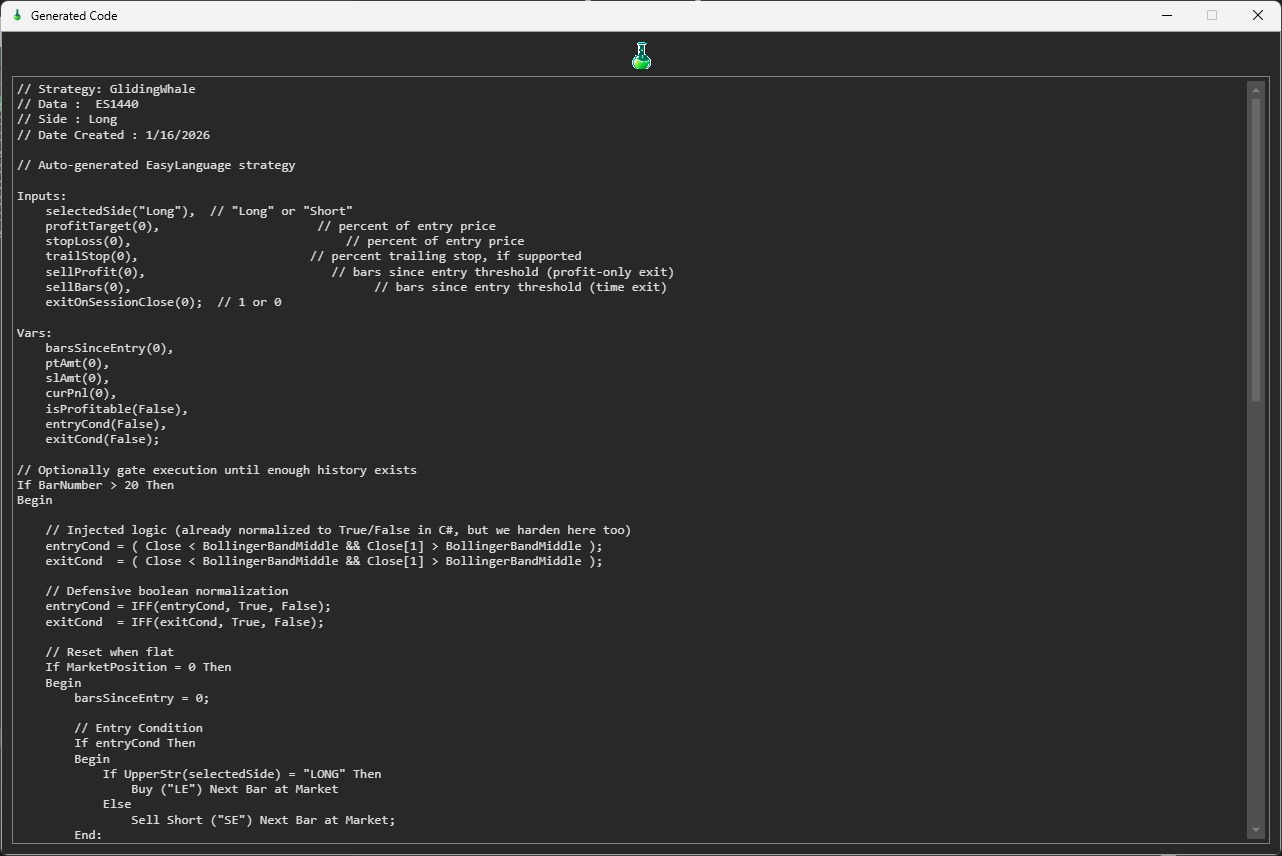
The TradeStation export generates an EasyLanguage strategy. It includes Inputs (settings), Variables (state), and the Entry/Exit conditions.
- What it is: a TradeStation and MultiCharts compatible strategy script.
- How it works: StratGen turns your signals into boolean entry/exit conditions and writes the order statements for you.
- What to do: paste into a new EasyLanguage strategy, compile, and backtest inside TradeStation.
Python code export
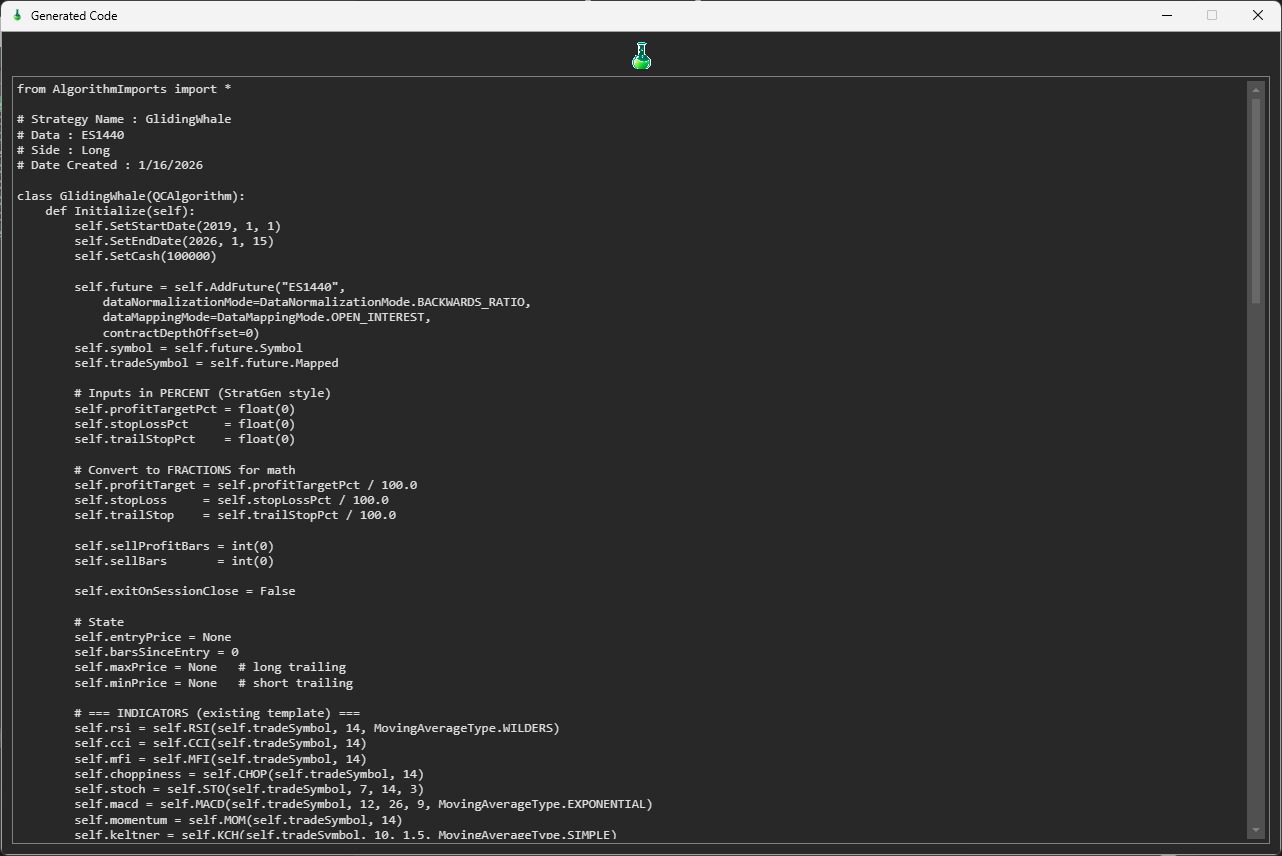
The Python export generates a Python algorithm template that contains your strategy logic. This is intended for users who want a programmable environment.
- What it is: a Python strategy scaffold with indicators and entry/exit logic.
- Use case: porting into your Python trading environment or research workflow.
- What to do: copy into your Python platform, verify data mappings, then run a backtest.
Practical warning
Exported code is only as good as your validation. Always run Out-of-Sample, Walk-Forward, and Monte Carlo before trading live.
Walk-forward-aware export
If you export from walk-forward results, StratGen can generate code that changes parameters by historical walk-forward window. This is different from a normal export, where one parameter set is used for the full backtest.
Use normal export for a simple static strategy. Use walk-forward-aware export when you intentionally want the exported strategy to follow the parameter schedule discovered during walk-forward validation.
Monte Carlo Simulation (Robustness Test)
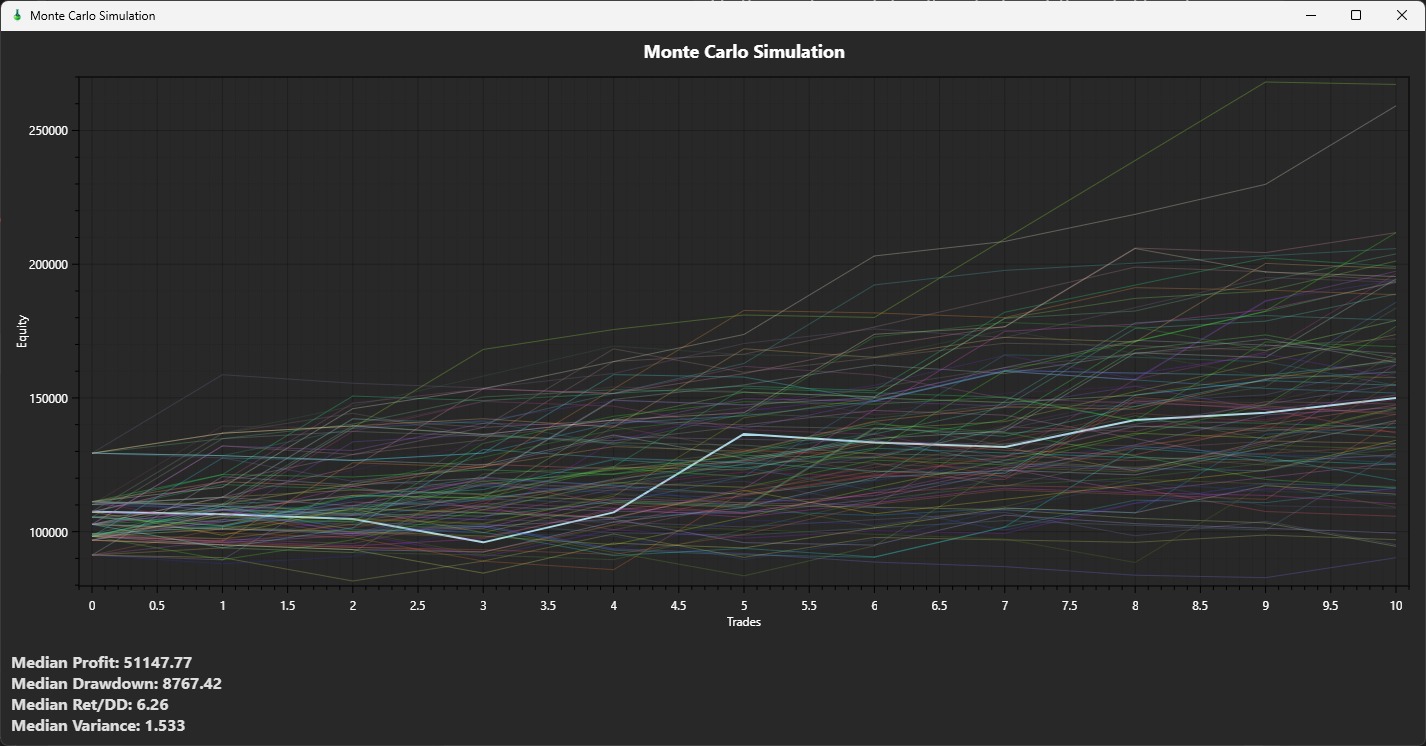
Monte Carlo is a robustness test. It answers this question:“If the same strategy had small randomness in trade order or outcomes, would it still look good?”
What StratGen is doing (plain language)
- It takes the strategy’s trade results.
- It generates many alternative “paths” where trade sequencing or outcomes are randomized.
- It plots many possible equity curves (the thin lines) plus the reference curve (often highlighted).
How to read the chart
- Tight bundle of lines: outcomes are consistent. That is usually good.
- Wide spread of lines: outcomes depend heavily on luck and sequencing. That is riskier.
- Many lines go negative or flat: strategy may be fragile.
What the summary numbers mean
- Median Profit: the middle outcome across simulations (typical result).
- Median Drawdown: typical worst drawdown across simulations.
- Median Ret/DD: typical return-to-drawdown ratio.
- Variance: how spread out the outcomes are. Lower variance generally means more consistency.
Simple pass/fail guidance
- If the median path is profitable and drawdowns stay reasonable, that is a good sign.
- If outcomes vary wildly, you probably have an overfit strategy.
- Do not export code until Monte Carlo looks acceptable.
What you should be looking for
- A strong target is Median Ret/DD greater than 2. This generally indicates good performance relative to drawdown.
- If the lines spread wildly (very wide fan), the strategy may be fragile and dependent on luck or sequencing.
12) Portfolio
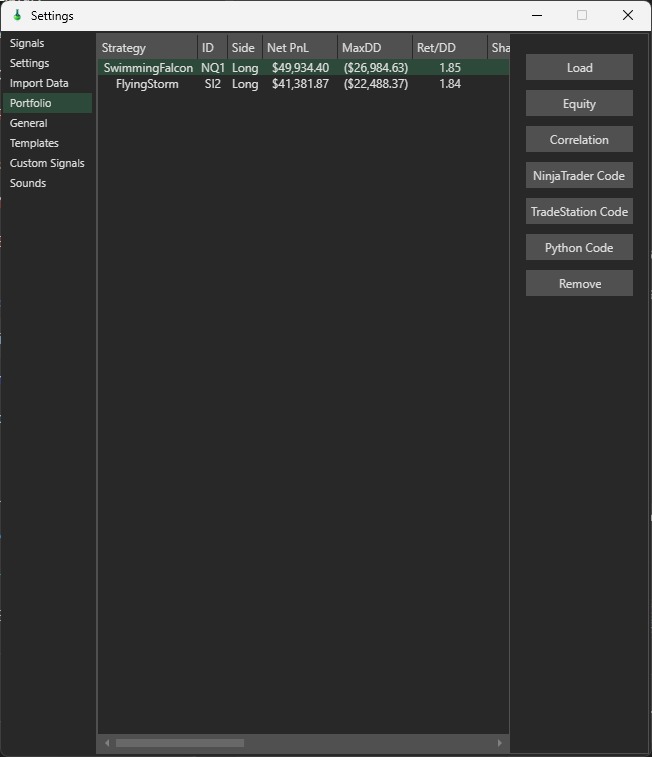
The Portfolio tab lets you combine multiple strategies into one portfolio. This is important because a single strategy can look good but still be too dependent on one market, one signal family, or one time period.
How to add strategies to a portfolio
- Go to the Strategy Results list.
- Left-click the strategy row you want to add.
- Click Add To Portfolio.
- Repeat for other strategies you want to combine.
- Open the Portfolio tab and review the combined result.
What makes a good portfolio candidate
- Different symbols: examples include NQ plus CL, or ES plus GC.
- Different logic: trend-following plus mean-reversion can diversify better than two similar trend systems.
- Different drawdown timing: one strategy should not lose money at the exact same time as every other strategy.
- Acceptable standalone quality: do not add a bad strategy just because it is different.
Portfolio warning
A portfolio is not automatically safer. If you combine five strategies that all lose during the same market regime, you have multiplied the same risk five times.
Portfolio Monte Carlo
Portfolio Monte Carlo stress-tests the combined portfolio instead of one individual strategy. This is one of the most important newer validation tools because it answers a portfolio-level question: If trade order and outcomes vary, does the combined account still survive?
Single-strategy Monte Carlo vs Portfolio Monte Carlo
- Single-strategy Monte Carlo: tests one selected strategy.
- Portfolio Monte Carlo: tests the combined behavior of several strategies together.
- Why portfolio Monte Carlo matters: the portfolio can fail even when each individual strategy looks acceptable.
How to use Portfolio Monte Carlo
- Add two or more strategies to the portfolio.
- Open the Portfolio or Portfolio Equity view.
- Run the portfolio Monte Carlo option.
- Review the simulated equity paths, median profit, median drawdown, and median Ret/DD.
- If the simulated paths spread too widely or many paths collapse, reduce exposure or replace weak portfolio members.
Simple portfolio Monte Carlo interpretation
- Good: most paths remain profitable, drawdowns stay controlled, and median Ret/DD remains strong.
- Warning: a few paths survive but many paths are flat or deeply negative.
- Bad: results depend on one lucky strategy or one lucky sequence of trades.
13) Portfolio Equity
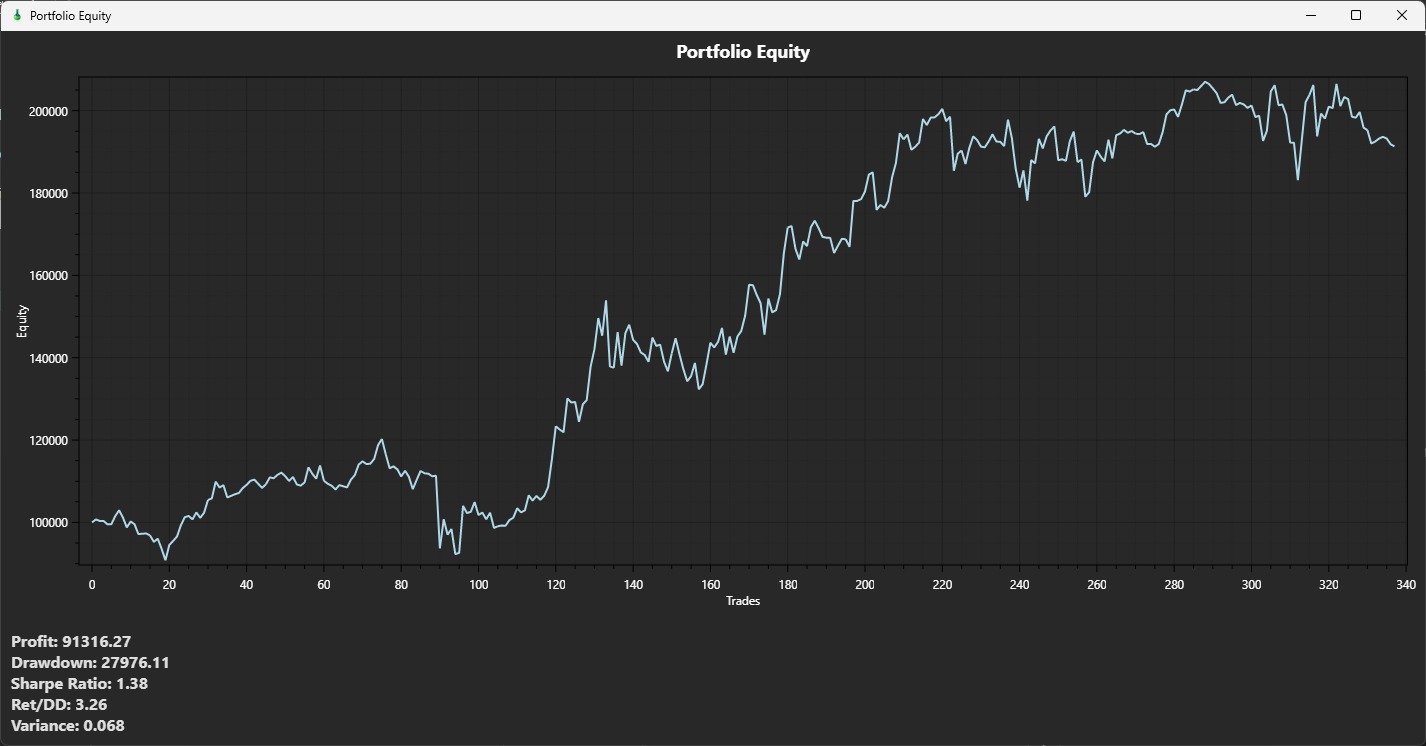
Portfolio Equity shows the combined equity curve of all portfolio strategies. Use it to see whether the portfolio grows smoothly or whether one strategy dominates all gains and losses.
What to look for
- Smoother curve: usually better than a curve with violent spikes and crashes.
- Lower combined drawdown: the portfolio should ideally reduce drawdown compared with trading everything separately.
- Realistic growth: avoid portfolios where one extreme winner hides several weak strategies.
- Buy and hold comparison: use it as context, not as the only decision rule.
Correlation (Diversification Check)
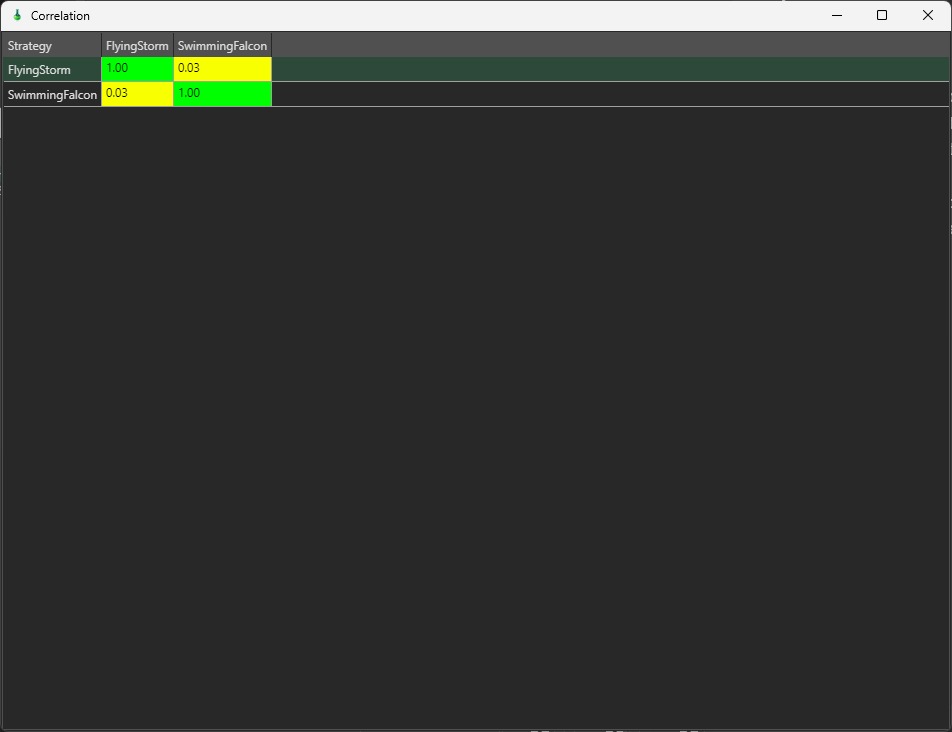
Correlation tells you whether two strategies tend to win and lose at the same time. This matters because two strategies that both “go down together” do not diversify risk.
What correlation values mean (simple)
- +1.00: move together perfectly (not diversified)
- 0.00: mostly unrelated (better diversification)
- -1.00: move opposite (often strong diversification, but not guaranteed)
How correlation is calculated (simple explanation)
StratGen compares two time series, usually returns per period (or equity changes). Correlation is basically: “Do these two lines move up and down together?”
Under the hood, it uses a standard correlation coefficient (Pearson correlation). You do not need to do the math, but the result will always be between -1 and +1.
Portfolio rule of thumb
- Try to combine strategies with low correlation (closer to 0).
- High correlation means you may just be doubling the same risk.
- Correlation can change over time, so always check walk-forward or multiple periods if possible.
15) Templates
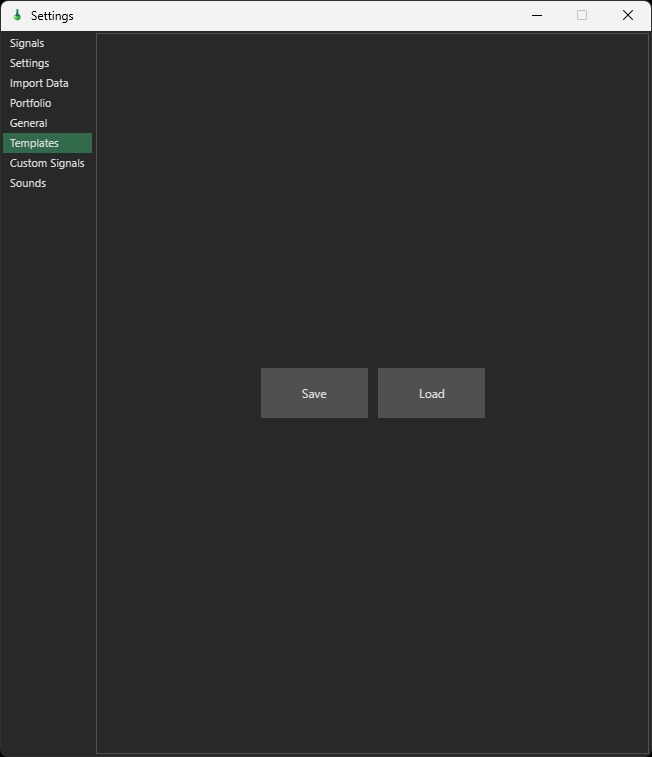
Save and reuse strategy configurations.
16) Custom Signals
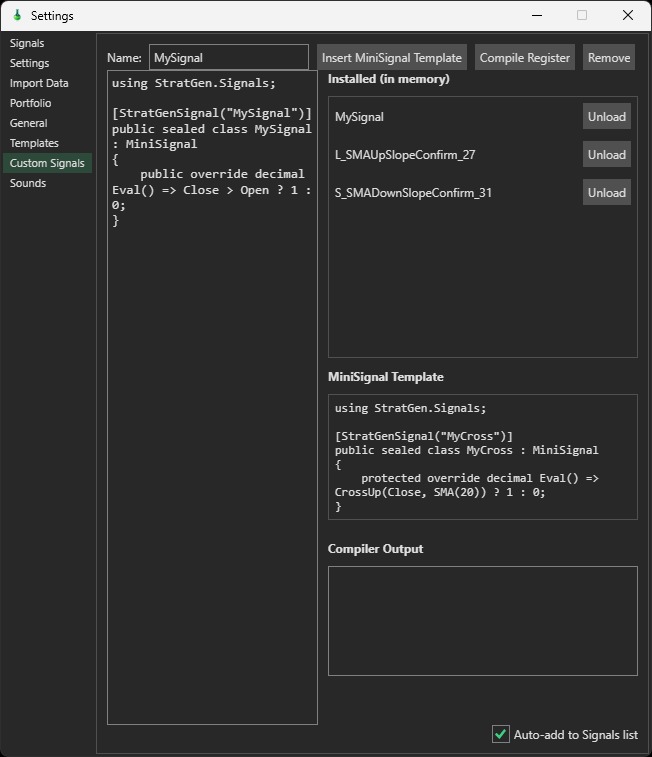
Create your own signals using C# MiniSignal templates.
Walk-Forward Results (Consistency Over Time)
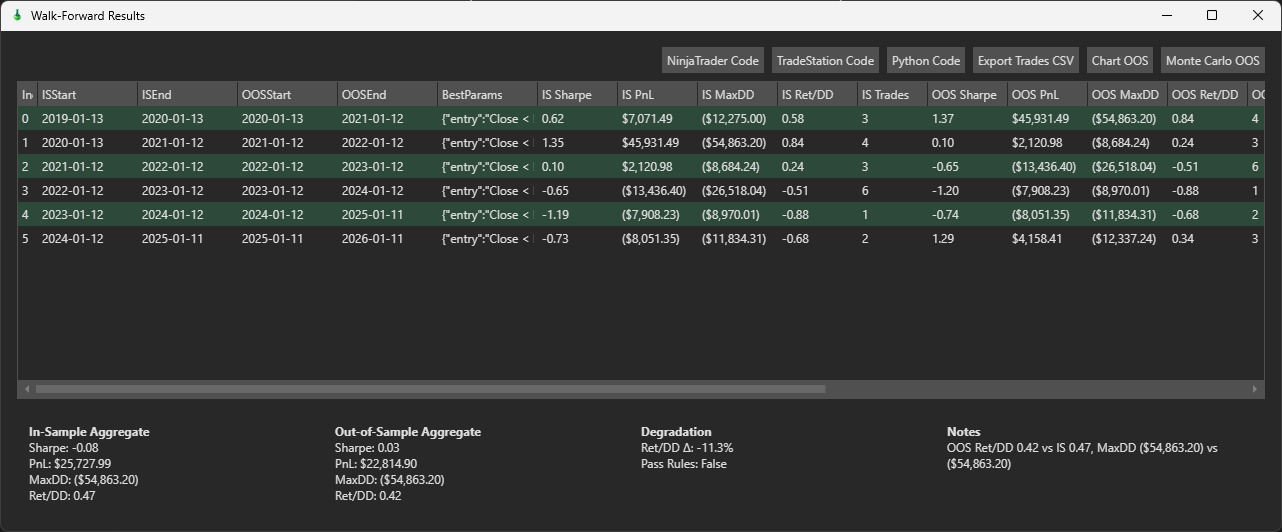
Walk-forward testing is a tougher validation method than a single IS/OOS split. Instead of one split, it repeats many splits.
What is happening in each row
- IS Start / IS End: the training window (In-Sample)
- OOS Start / OOS End: the validation window (Out-of-Sample)
- Best Params: the parameters found in that IS window
- IS metrics: performance inside the training window
- OOS metrics: performance inside the validation window
How to interpret results (simple)
- If OOS metrics stay reasonably positive across many windows, the strategy is more reliable.
- If OOS flips wildly, it may be regime-dependent or overfit.
- A small drop from IS to OOS is normal. A large collapse is a warning sign.
What “degradation” means
Degradation is the drop from IS performance to OOS performance. Some degradation is expected. Extreme degradation usually means the strategy is tuned too specifically to the IS window.
Walk-Forward code export (advanced, recommended)
StratGen can generate walk-forward-aware code that changes parameters across walk-forward windows. This lets you backtest the realistic scenario where the “best parameters” evolve over time as the walk-forward process advances.
Simple interpretation: instead of one static parameter set forever, the exported code can apply the right parameter set for each historical window.
AI Workflows (Settings Page)
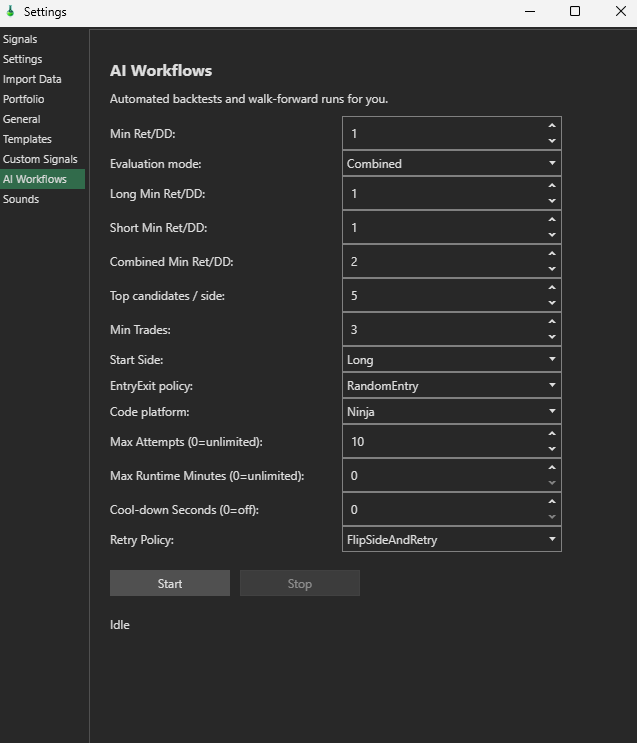
AI Workflows automates repeated strategy runs (backtests and walk-forward cycles), filtering results by quality thresholds and retry rules until it finds viable candidates.
Core Evaluation Filters
- Min Ret/DD: Minimum return-to-drawdown ratio required for a candidate to pass (global threshold).
- Evaluation mode: Decides how results are scored.
- Combined: Uses both long and short performance together.
- Other modes (if available): Typically evaluate long and short independently.
- Long Min Ret/DD: Minimum Ret/DD required for the long side.
- Short Min Ret/DD: Minimum Ret/DD required for the short side.
- Combined Min Ret/DD: Minimum Ret/DD required when long+short are merged into one system view.
- Min Trades: Minimum number of trades required before a result is considered valid (prevents overfitting on tiny sample sizes).
- Top candidates / side: Number of highest-ranked strategies kept per side (long or short) after each evaluation pass.
Run Direction and Strategy Construction
- Start Side: Which direction workflow begins with (Long or Short).
- EntryExit policy: Rule set for how entries/exits are generated during search (example shown: RandomEntry).
- Code platform: Target execution/runtime format for generated strategy code (example shown: Ninja, likely NinjaTrader-compatible output).
Execution Limits and Throughput Control
- Max Attempts (0=unlimited): Max number of strategy-generation/evaluation tries before stopping.
- Max Runtime Minutes (0=unlimited): Hard time limit for the workflow.
- Cool-down Seconds (0=off): Delay between attempts to reduce load, pacing API/simulation usage.
Retry Behavior
- Retry Policy: What happens after a failed/invalid attempt.
- Example shown: FlipSideAndRetry (switch side and try again).
Auto-combine behavior
AI Workflows can combine long and short candidates automatically when the workflow finds acceptable pieces. This is useful when one side performs well by itself but the final goal is a combined long/short strategy.
- Long candidate: a strategy that passes the long-side filters.
- Short candidate: a strategy that passes the short-side filters.
- Combined candidate: long and short logic merged into one strategy view.
- What to check: combined Ret/DD, combined drawdown, trade count, and whether one side carries the other side.
Export behavior
AI Workflow export is designed to save the useful result after the workflow finds a valid candidate. Newer builds removed an avoidable stall in this export path and normalized plain backtest portfolio export names so they use normal timestamped names.
- If export succeeds: review the exported file and make sure the strategy name, symbol, and parameters match the result you selected.
- If export seems slow: wait for the workflow status to finish before clicking repeatedly.
- If multiple exports exist: use the timestamp and strategy name to identify the newest file.
Controls and Status
- Start: Begins the automated workflow with current settings.
- Stop: Stops the active workflow.
- Status text (example: Idle): Current workflow state (idle/running/stopped/error).
Practical Tuning Guidance
- Use higher Min Ret/DD values for stricter quality; lower values for broader exploration.
- Keep Min Trades high enough to avoid fragile results.
- Use Max Attempts and Max Runtime Minutes together to cap cost/time.
- If search stalls on one direction, FlipSideAndRetry helps maintain momentum.
AI Workflow beginner setup
- Set a realistic Min Trades value first. Do not accept strategies with only a few trades.
- Set Min Ret/DD to a value you would actually accept.
- Use a Max Runtime Minutes limit so the workflow cannot run forever by accident.
- Start with Combined evaluation if your goal is a single long/short system.
- After a candidate is found, still run chart review, Monte Carlo, and walk-forward before trusting it.
AI Copilot (Conversational Strategy Studio)
StratGen v1.3 introduces the AI Copilot—an autonomous, conversational quantitative research studio integrated directly into the platform. Instead of manually configuring dozens of signal permutations, risk sliders, and optimization windows, you can simply converse with the AI Copilot in natural English.
The Copilot doesn't just write text: it acts as an autonomous quantitative agent. It formulates strategy hypotheses, validates rules through a live C# Roslyn compiler, dispatches parallel backtest simulations, orchestrates multi-window Walk-Forward matrices, exports production code for NinjaTrader 8, TradeStation, and Python, and automatically persists winning strategies to your Portfolio folder.
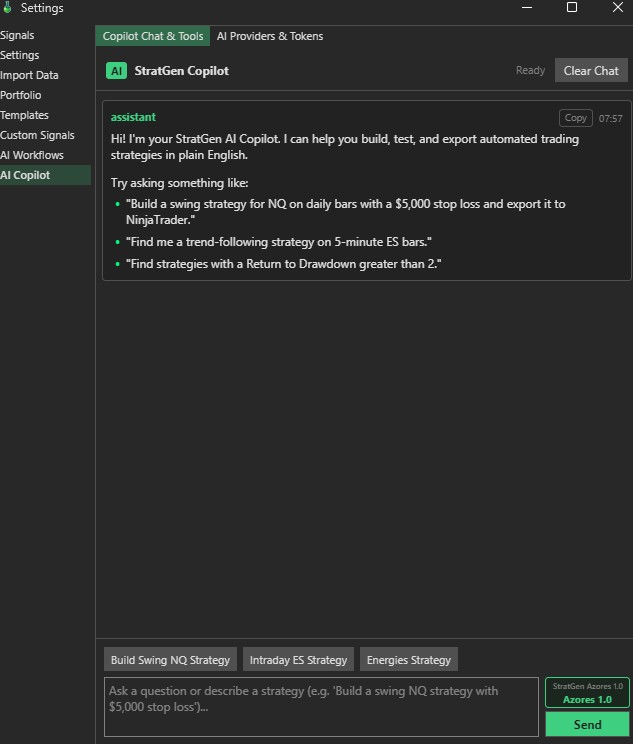
Navigating to the AI Copilot
Open the Settings window and select AI Copilot from the left sidebar navigation. The Copilot window features two dedicated sub-tabs:
- Copilot Chat & Tools: The primary workspace where you submit prompts, view real-time tool execution logs, inspect strategy metrics, and interact with the assistant.
- AI Providers & Tokens: The configuration hub for selecting models and configuring Bring-Your-Own-Key (BYOK) cloud providers.
The Copilot Chat & Tools Interface
- Conversational Prompt Box: Enter natural-language instructions detailing instruments, bar intervals, indicators, risk constraints, or performance targets (e.g. "Build a swing strategy for NQ on daily bars with a $5,000 stop loss and export it to NinjaTrader.").
- Active Execution Mode Badge: Located above the Send button (e.g.
StratGen Azores 1.0/Azores 1.0), this badge shows the currently active provider and model. Hovering displays detailed provider diagnostics. - Pre-Configured Quick Prompt Chips: Rapidly trigger standardized quantitative workflows with a single click:
- Build Swing NQ Strategy: Constructs a daily NQ swing system with a $5,000 protective stop loss and exports verified NinjaTrader 8 C# code.
- Intraday ES Strategy: Builds a 5-minute ES intraday momentum or mean-reversion strategy with strict 15:30 session close exits.
- Energies Strategy: Dispatches multi-commodity energy future searches (e.g., CL, NG) with walk-forward matrix verification.
- Message History & Copy Controls: Each assistant message and tool response card features an individual Copy button and timestamp, enabling instant copying of generated C# rules, backtest tables, or parameters.
- Clear Chat: Resets the conversation transcript and clears the assistant's working context for a fresh research session.
Configuring AI Providers & Cloud BYOK
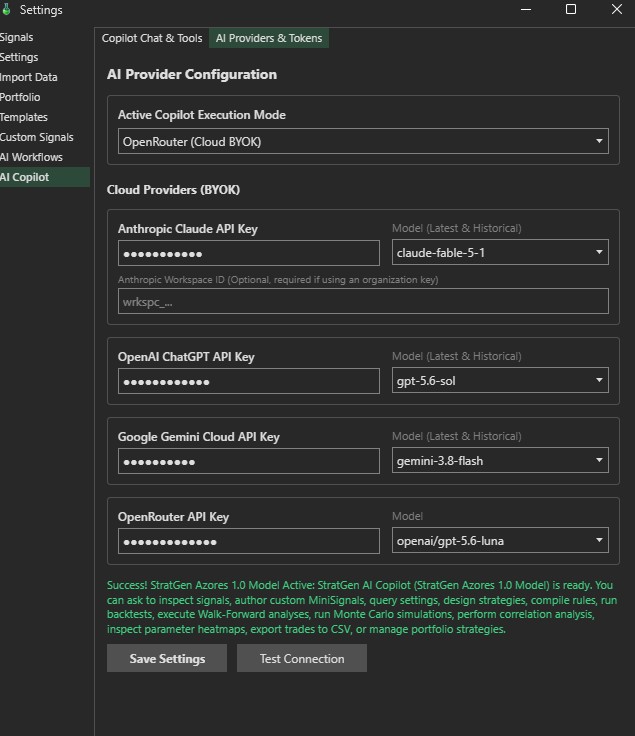
Under the AI Providers & Tokens sub-tab, StratGen provides institutional flexibility by supporting both native local models and cloud Bring-Your-Own-Key (BYOK) providers.
Supported Execution Modes & Providers
- StratGen Azores 1.0 Model: The native fine-tuned quantitative reasoning engine running directly in C#. Specialized for algorithmic rule formulation, risk boundaries, and backtest interpretation without requiring third-party cloud keys.
- OpenRouter (Cloud BYOK): Connects your OpenRouter API key to access hundreds of cutting-edge models (e.g.
openai/gpt-5.6-luna,anthropic/claude-3.5-sonnet, Meta LLaMA 3, DeepSeek, Mistral). - Anthropic Claude (Cloud BYOK): Direct API integration with Anthropic models (e.g.
claude-fable-5-1). Supports both personal API keys and an optional Anthropic Workspace ID for organizational team keys. - OpenAI ChatGPT (Cloud BYOK): Direct API integration with OpenAI models (e.g.
gpt-5.6-sol, GPT-4o, GPT-4 Turbo). - Google Gemini Cloud (Cloud BYOK): Direct integration with Google Cloud AI Studio (e.g.
gemini-3.8-flash, Gemini 1.5 Pro).
Connection Handshake & Security
After entering your API keys, click Test Connection to perform an immediate live handshake with the remote endpoint. StratGen verifies your credentials, validates token balance and latency, and confirms readiness with a green confirmation message. Click Save Settings to securely persist encrypted credentials via the local KeyVault.
Autonomous Tool Execution & Walk-Forward in Action
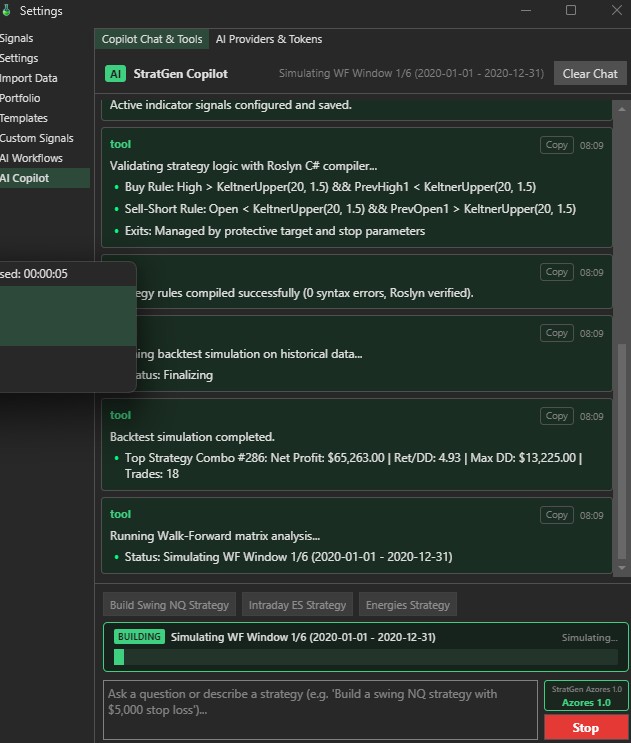
When the AI Copilot processes a prompt, it operates as a multi-step autonomous agent. It invokes specialized backend tools and streams its progress directly into the chat:
- Roslyn C# Rule Validation: The Copilot formulates concrete boolean indicator expressions (e.g.
High > KeltnerUpper(20, 1.5) && PrevHigh1 < KeltnerUpper(20, 1.5)). Before running any simulation, it compiles the rules in real time using Microsoft's Roslyn C# compiler. If syntax or type errors occur, it automatically corrects them on the fly to guarantee 0 compile errors. - Multi-Core Backtest Simulation: The verified rules are passed into StratGen's multi-threaded backtest engine. The Copilot evaluates performance and reports top candidate metrics (e.g., Top Strategy Combo #286: Net Profit: $65,263.00 | Ret/DD: 4.93 | Max DD: $13,225.00 | Trades: 18).
- Walk-Forward Matrix Analysis: To guard against overfitting, the Copilot automatically orchestrates a multi-window Walk-Forward optimization (e.g. Simulating WF Window 1/6 (2020-01-01 - 2020-12-31)). It evaluates in-sample parameter stability and verifies that performance holds on unseen out-of-sample data.
- Real-Time Execution Controls & Status Bar: While tools run, the Copilot interface displays a determinate progress bar and real-time status banner (e.g.
Simulating WF Window 1/6). If you wish to halt a long optimization pass, click the red Stop button to instantly cancel execution. - Automated Code Generation & Portfolio Persistence: Upon passing all robustness thresholds, the Copilot:
- Generates production-grade code for NinjaTrader 8 (C#), TradeStation (EasyLanguage), or QuantConnect (Python).
- Automatically writes a structured JSON portfolio file (
Strat_<Symbol>_<Timeframe>_WFO.json) directly into StratGen'sPortfolio/folder, containing all trade ledgers, walk-forward matrices, and equity curves.
Copilot Prompting Best Practices
- Specify Market & Timeframe: Always include the symbol and resolution (e.g.,
NQ daily,5-minute ES, orCL 60-minute). - Define Clear Risk Boundaries: Mention exact dollar or percentage stops (e.g., "$4,000 stop loss, $6,000 profit target, max drawdown under $20,000").
- Day Trading vs Swing Guidance: For intraday algorithms, explicitly request session liquidation (e.g., "Exit on session close at 15:30"). For multi-day swing strategies, state "Swing strategy, hold overnight without session close exits" to ensure maximum trend capture.
- Enforce Quality Thresholds: Instruct the Copilot to enforce strict statistical filters (e.g., "Require Ret/DD greater than 2.0 and minimum 30 trades").
- Targeted Refinements: You can converse conversationally to refine results (e.g. "Tighten the stop loss to $3,500 and re-run the backtest" or "Add an RSI filter to avoid buying when overbought").
StratGen Local Azores 1.0 Model (Zero-Token Offline Quant Engine)
StratGen Azores 1.0 is StratGen's proprietary, built-in quantitative reasoning and rule formulation engine. Unlike third-party cloud models that rely on external APIs, Azores 1.0 runs 100% locally inside StratGen's compiled .NET assemblies. It was specifically engineered for quantitative trading firms, proprietary prop traders, and independent quants who demand absolute data privacy, zero token costs, and instant execution.
Why StratGen Azores 1.0 Matters
- 100% Air-Gapped & Private: Your proprietary trading concepts, strategy rules, custom indicator formulas, and account data never leave your local machine. No prompts or backtest data are ever transmitted to OpenAI, Anthropic, Google, or any cloud server.
- Zero Token Billing ($0.00 Forever): Run hundreds of strategy iterations, multi-asset portfolio searches, and optimization passes without worrying about cloud API bills, token meters, or rate limits.
- Instant Local Execution (Zero Latency): Bypasses cloud HTTP round-trips, model queuing, and API throttling. Azores generates structured algorithmic hypotheses and rule expressions in milliseconds.
- Zero-Setup Deployment: Pre-compiled directly into the standalone
StratGen.exebinary. Does not require Python installations, Docker containers, CUDA drivers, or heavy local LLM host processes like Ollama or vLLM. It runs immediately on any Windows PC or laptop.
Core Architecture & Autonomous Reasoning Pipeline
Azores 1.0 does not merely generate conversational text—it operates as a deterministic quantitative rule synthesizer directly coupled to StratGen's computational simulation core:
- Natural-Language Quant Prompt Parsing: Azores decodes plain English prompts and extracts key quantitative variables:
- Target Symbols: Detects futures (e.g.
NQ,ES,YM,RTY,CL,GC,NG), forex pairs, and crypto. - Bar Resolutions: Identifies intraday intervals (
1m,5m,15m,30m,60m), daily bars (1440m), or tick data. - Risk Controls: Automatically parses dollar-based (e.g.
$5,000) or percentage-based (1.5%) stop losses, profit targets, and trailing stops. - Session Liquidation: Recognizes explicit time constraints (e.g. "liquidate at 15:30") vs overnight swing holding.
- Target Symbols: Detects futures (e.g.
- Roslyn C# Rule Synthesis: Azores formulates valid boolean logic referencing StratGen's catalog of 600+ built-in technical indicators:
// Example Azores formulated long entry rule:
Open > BollingerBandHigh(20, 2.0) && PrevOpen1 < BollingerBandHigh(20, 2.0) && RSI(14) > 50 && KAMA(30) > SMA(50)
- Autonomous Self-Healing Compilation: Before executing a simulation, Azores compiles candidate rules in real time via Microsoft Roslyn. If a rule produces compile warnings or type mismatches, Azores analyzes compiler diagnostics in-memory and automatically rewrites the expression to guarantee 0 compile errors.
- Multi-Core Simulation & Robustness Checks: Azores dispatches the verified rules across all CPU cores, evaluates in-sample metrics (Net Profit, Ret/DD, Max Drawdown, Win Rate, Trades), runs multi-window Walk-Forward matrices, and evaluates out-of-sample efficiency (WFE ≥ 70%).
- Automated Code Export & Portfolio Persistence: Once robustness criteria are met, Azores generates verified C# code for NinjaTrader 8, EasyLanguage for TradeStation, or Python for QuantConnect, and automatically writes structured JSON portfolio artifacts (
Strat_<Symbol>_<Timeframe>_WFO.json) directly to yourPortfolio/directory.
Selecting Azores 1.0 in StratGen
- Open Settings and click AI Copilot in the left sidebar.
- Switch to the AI Providers & Tokens sub-tab.
- In the AI Provider dropdown, select StratGen Local (Azores 1.0).
- Click Test Connection. You will immediately see a green confirmation:
Success! StratGen Azores 1.0 Model Active. - Click Save Settings. In the Copilot Chat workspace, the active mode badge will now display
StratGen Azores 1.0.
Feature Comparison: Azores 1.0 vs Cloud BYOK
| Feature | StratGen Azores 1.0 | Cloud BYOK (OpenRouter / Claude / OpenAI) |
|---|---|---|
| Cost per Prompt | $0.00 (Zero Token Billing) | Billed per token by third-party provider |
| Data Privacy | 100% Offline / Air-Gapped | Prompts sent to cloud provider servers |
| Execution Latency | Instant (0–50ms) | 2–10 seconds (network + cloud queue) |
| Internet Required? | No (Runs fully offline) | Yes (Active internet connection required) |
| API Key Required? | None needed | Requires user API key from OpenAI/Anthropic |
| C# Roslyn Rule Synthesis | Native deterministic compiler | LLM generated with self-correcting retry loop |
| Conversational Creativity | Deterministic quantitative focus | Rich conversational explanations & narrative |
Local Bridge HTTP Connection (External LLMs, CLI Agents & REST)
The StratGen Local Bridge is an embedded, high-throughput HTTP IPC (Inter-Process Communication) server powered by .NET's native HttpListener. It binds by default to http://127.0.0.1:5199/api/ and runs directly inside the StratGen application process.
The Local Bridge enables external AI tools, command-line coding agents (such as Google DeepMind's AntiGravity, Anthropic's Claude Code, and OpenAI's Codex), terminal scripts, and custom Python programs to control StratGen programmatically with zero token cost.
Dedicated Port Ecosystem & Provider Profiles
StratGen organizes local tool interaction through dedicated port profiles:
- AntiGravity & Gemini Bridge (Default: Port 5199): The primary local bridge for Google DeepMind's AntiGravity AI coding assistant and local Gemini workflows. Supports full strategy discovery, rule compilation, backtest dispatch, and portfolio management.
- Claude Code CLI Bridge (Default: Port 5200): Dedicated profile configured to interface seamlessly with Anthropic's Claude Code terminal developer agent.
- ChatGPT & Codex CLI Bridge (Default: Port 5201): Dedicated profile for OpenAI CLI tools, Codex automation scripts, and custom local agent frameworks.
- Custom Automated Pipelines & Python Scripts: Any programming language capable of sending HTTP GET and POST requests can invoke StratGen's backtest engine, retrieve loaded market data, or generate production code.
Enabling & Configuring the Local Bridge
- Open StratGen → Settings → AI Copilot → AI Providers & Tokens.
- Select AntiGravity & Gemini Bridge (or Local Bridge).
- Ensure Local Port is set (default:
5199) and the Enable :5199 checkbox is checked. - Click Test Connection to verify that the local HTTP listener loop is active.
- The server starts automatically whenever StratGen launches and shuts down cleanly when the application exits.
Complete REST API Reference
All endpoints accept and return standard JSON payloads (Content-Type: application/json) with CORS headers enabled:
| Method | Route | Description |
|---|---|---|
| GET | /api/status | Returns server status, active port, version, and catalog of all 25 active endpoints. |
| GET | /api/settings | Retrieves active StratGen settings (selected instruments, bar resolutions, risk parameters). |
| POST | /api/settings | Dynamically updates StratGen settings (e.g. Stop Loss, Profit Target, Date Ranges). |
| GET | /api/data/symbols | Lists all imported market data symbols, available bar resolutions (1m, 5m, daily), and date ranges. |
| GET | /api/signals/available | Inspects 600+ technical indicators, parameter ranges, and indicator categories. |
| POST | /api/signals/custom/register | Authors and registers a new C# MiniSignal class dynamically into memory. |
| POST | /api/compile | Compiles and validates C# Roslyn entry and exit expressions; reports compiler diagnostics. |
| POST | /api/backtest | Executes high-throughput backtest simulation for specified symbol, timeframe, and risk parameters. |
| POST | /api/walkforward | Runs rolling multi-window Walk-Forward optimization with in-sample/out-of-sample ratios. |
| POST | /api/codegen/ninjatrader | Generates ready-to-trade NinjaTrader 8 NinjaScript C# code with custom inputs and protective exits. |
| POST | /api/codegen/python | Generates production Python algorithm code for QuantConnect / Lean. |
| POST | /api/codegen/tradestation | Generates EasyLanguage strategy code for TradeStation. |
| GET | /api/portfolio/summary | Summarizes active strategies in the Portfolio folder, aggregate net profit, and max drawdown. |
| POST | /api/portfolio/build | Builds a multi-instrument diversified portfolio across specified futures symbols. |
| POST | /api/analysis/montecarlo | Runs Monte Carlo trade randomization (default: 1,000 simulations at 95% confidence). |
Python Automation Example
Here is how an external Python script can interact with StratGen's Local Bridge:
import requests

BASE_URL = "http://127.0.0.1:5199"

# 1. Check Server Health
status = requests.get(f"{BASE_URL}/api/status").json()
print(f"StratGen Server Online: {status['server']} on port {status['port']}")

# 2. Compile a C# Roslyn Trading Rule
rule_payload = {
    "long_entry": "Close > BollingerBandMiddle(20, 2.0) && RSI(14) > 55",
    "short_entry": "Close < BollingerBandMiddle(20, 2.0) && RSI(14) < 45"
}
compile_res = requests.post(f"{BASE_URL}/api/compile", json=rule_payload).json()
print("Rule Compilation:", compile_res)

# 3. Dispatch an Institutional Backtest Pass
backtest_payload = {
    "symbol": "NQ",
    "timeframe": "1m",
    "entry_signal": "Open > BollingerBandHigh(20, 2.0)",
    "stop_loss_pct": 1.5,
    "profit_target_pct": 3.5,
    "session_close_time": "15:30"
}
backtest_res = requests.post(f"{BASE_URL}/api/backtest", json=backtest_payload).json()
print("Backtest Top Strategy:", backtest_res.get("top_strategy"))

# 4. Generate NinjaTrader 8 Production Code
codegen_payload = {
    "strategy_name": "StratGen_NQ_Momentum",
    "symbol": "NQ",
    "timeframe": "1m",
    "stop_loss_pct": 1.5,
    "profit_target_pct": 3.5
}
code_res = requests.post(f"{BASE_URL}/api/codegen/ninjatrader", json=codegen_payload).json()
print("Generated NinjaScript C# Length:", len(code_res.get("code", "")))Model Context Protocol (MCP) Server (Claude Desktop, Cursor, Windsurf & LAN)
StratGen v1.3 features native, built-in support for Anthropic's Model Context Protocol (MCP). MCP is the open industry standard enabling AI models (including Claude 3.5 Sonnet, GPT-4o, and Cursor) to securely discover and invoke specialized local tools.
Unlike solutions that require external Python wrapper scripts (fastmcp) or Node.js sidecars, StratGen acts as an embedded native MCP server. It supports both standard HTTP with Server-Sent Events (SSE) at /sse and stateless JSON-RPC 2.0 at /mcp and /message.
StratGen Native MCP Tool Catalog
When an MCP client connects, StratGen automatically advertises its complete tool catalog via tools/list with full JSON parameter schemas:
compile_strategy_rules: Compiles and validates C# Roslyn indicator rules with real-time error diagnostics.run_lean_backtest: Executes multi-core institutional backtest simulations on loaded market data.run_walkforward_analysis: Executes rolling multi-window Walk-Forward optimization matrices.generate_ninjatrader_code: Generates complete, compiled NinjaTrader 8 NinjaScript C# strategy classes.generate_python_code: Exports clean Python algorithms for QuantConnect / Lean.generate_tradestation_code: Exports verified EasyLanguage strategies for TradeStation.build_strategy_portfolio: Dispatches multi-asset portfolio generation across user-selected futures.run_monte_carlo_analysis: Conducts 1,000+ trade order randomization runs to stress-test maximum drawdown.get_imported_data_symbols: Queries all currently loaded historical market data symbols and bar resolutions.get_available_signals: Inspects 600+ technical indicators and parameter constraints.register_custom_signal: Authors and hot-reloads custom C# MiniSignal technical studies at runtime.
Client Configuration Guides
1. Claude Desktop
Open your Claude Desktop configuration file in a text editor:
- Windows:
%APPDATA%\Claude\claude_desktop_config.json - macOS:
~/Library/Application Support/Claude/claude_desktop_config.json
Add the StratGen SSE server to your mcpServers block:
{
  "mcpServers": {
    "stratgen": {
      "url": "http://127.0.0.1:5199/sse"
    }
  }
}
Restart Claude Desktop. You will see a hammer icon indicating that StratGen's 20+ quant tools are connected and available.
2. Cursor IDE
In Cursor, navigate to Settings → Features → MCP Servers (or create .cursor/mcp.json in your project workspace):
{
  "mcpServers": {
    "stratgen": {
      "url": "http://127.0.0.1:5199/sse"
    }
  }
}
3. Windsurf IDE / Cascade
In Windsurf, edit your global MCP configuration file (~/.codeium/windsurf/mcp_config.json):
{
  "mcpServers": {
    "stratgen": {
      "url": "http://127.0.0.1:5199/sse"
    }
  }
}
Remote AI Workspaces & LAN Deployment (Windows Server)
In professional trading setups, StratGen often runs on a high-spec Windows trading workstation or VPS, while the quant researcher interacts with AI tools from a laptop, Linux AI container, or remote workstation over the local network (LAN).
Why 127.0.0.1 Requires Port Forwarding
By default, StratGen binds strictly to 127.0.0.1 (loopback) to prevent unauthorized network access. To allow another machine on your LAN to access the MCP server, proxy the port using Windows netsh:
- Run
netsh portproxyon the StratGen Windows Server (in an Administrator command prompt):netsh interface portproxy add v4tov4 listenport=5199 listenaddress=0.0.0.0 connectport=5199 connectaddress=127.0.0.1
- Allow Port 5199 in Windows Firewall:
netsh advfirewall firewall add rule name="StratGen MCP Bridge" dir=in action=allow protocol=TCP localport=5199
- Configure Your Remote AI Client: Point the MCP client to the Windows server's LAN IP address:
{
  "mcpServers": {
    "stratgen": {
      "url": "http://<WINDOWS-SERVER-IP>:5199/sse"
    }
  }
}
MCP Prompt Engineering & Best Practices
1. Initial Connection Handshake & Scan Prompt
Whenever you start a fresh session with Claude Desktop, Cursor, or your AI workspace, copy and paste this prompt to perform an instant end-to-end diagnostic scan:
You are connected to the StratGen Quant Engine via MCP. Please perform a full system scan:
1. Check engine status and report the active version and active port.
2. List all available StratGen tools you now have access to and summarize their capabilities.
3. Query imported market data symbols to check available instruments and bar resolutions.
4. Test Roslyn rule compilation with a simple test rule:
   - Long Entry: Close > SMA(50) && RSI(14) > 55
   - Short Entry: Close < SMA(50) && RSI(14) < 45
Confirm when the engine connection is healthy and you are ready to design and backtest strategies.
2. Full Strategy Generation & Walk-Forward Prompt
Use this structured prompt template to command the AI model to execute an autonomous quant research workflow:
Act as an institutional quantitative portfolio manager. Using your StratGen MCP tools:
1. Check loaded market data for NQ on 1440m (daily) bars.
2. Formulate a swing trading trend-following hypothesis using Bollinger Bands and KAMA.
3. Compile the trading rules through Roslyn to ensure zero syntax errors.
4. Run an initial institutional backtest with:
   - Stop Loss: $5,000 (dollar-based)
   - Profit Target: None (let winners run)
   - Trailing Stop: $3,500
   - Overnight holding: Yes (do not liquidate at session close)
5. If Ret/DD > 2.5, run a 6-window rolling Walk-Forward analysis (70% in-sample ratio).
6. Verify that out-of-sample efficiency (WFE) exceeds 75%.
7. Export the production-grade strategy into NinjaTrader 8 C# NinjaScript code.